Device Template

1. Description

  • Click Device Onboarding - Device Template to enter the Device Template Management page. Functions include creating, editing, and managing device templates.

2. Operations

2.1 Create Device Template

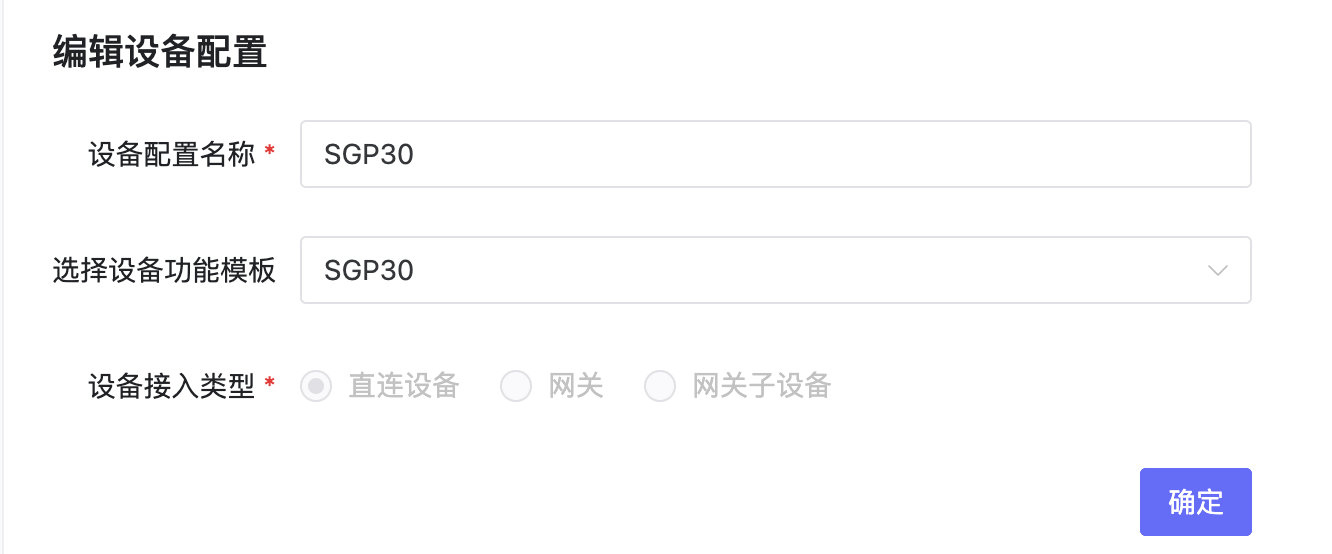
  • Click Create Device Template to create a configuration. You can choose:
  1. Enter Device Template Name: e.g., SGP30 Sensor
  2. Bind Product Model (Thing Model)
  3. Device Onboarding Type: Selectable during creation, cannot be changed during editing.

Create Template

2.2 Device Template Details

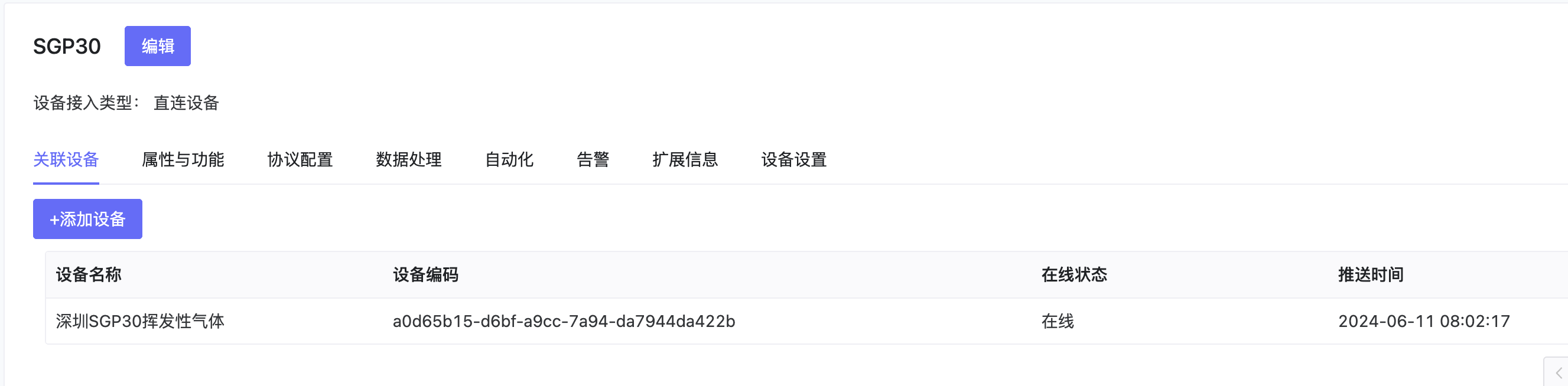
2.3 Associated Devices

  • Add devices associated with the template. After configuration, the template configuration will be synchronized to the devices.

Associated Devices

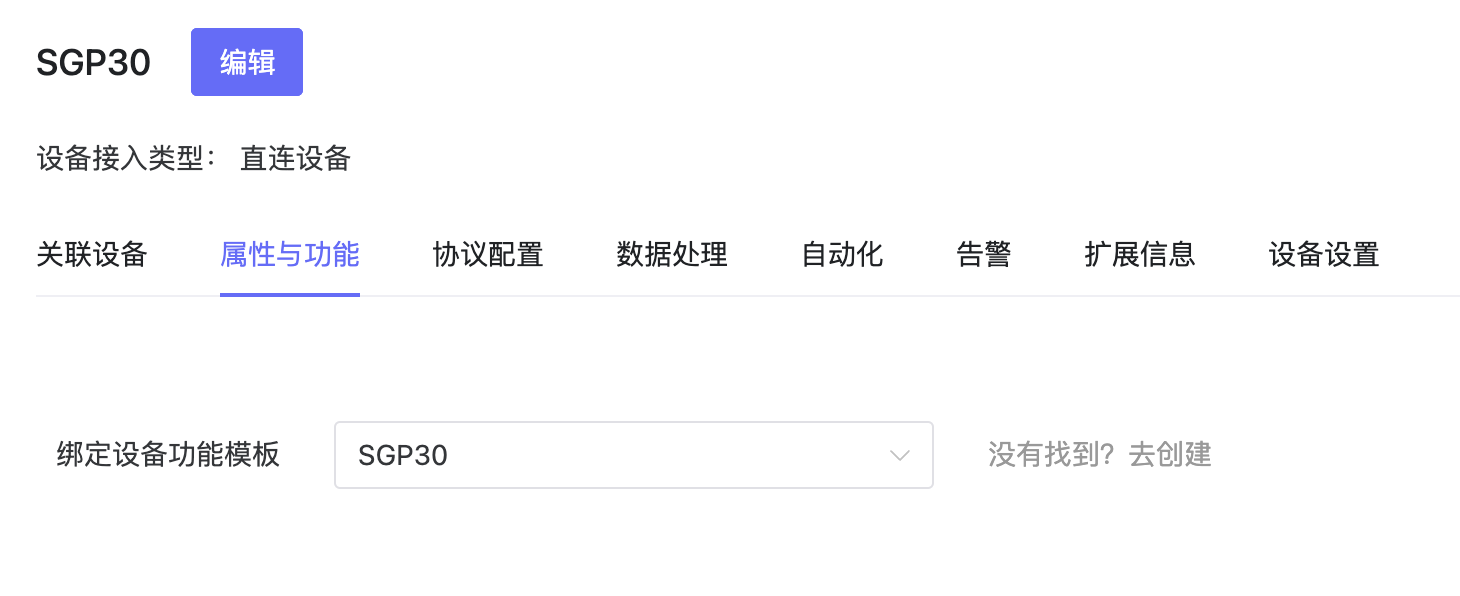
2.4 Attributes and Functions

  • Set bound Product Model (Thing Model).

Attributes

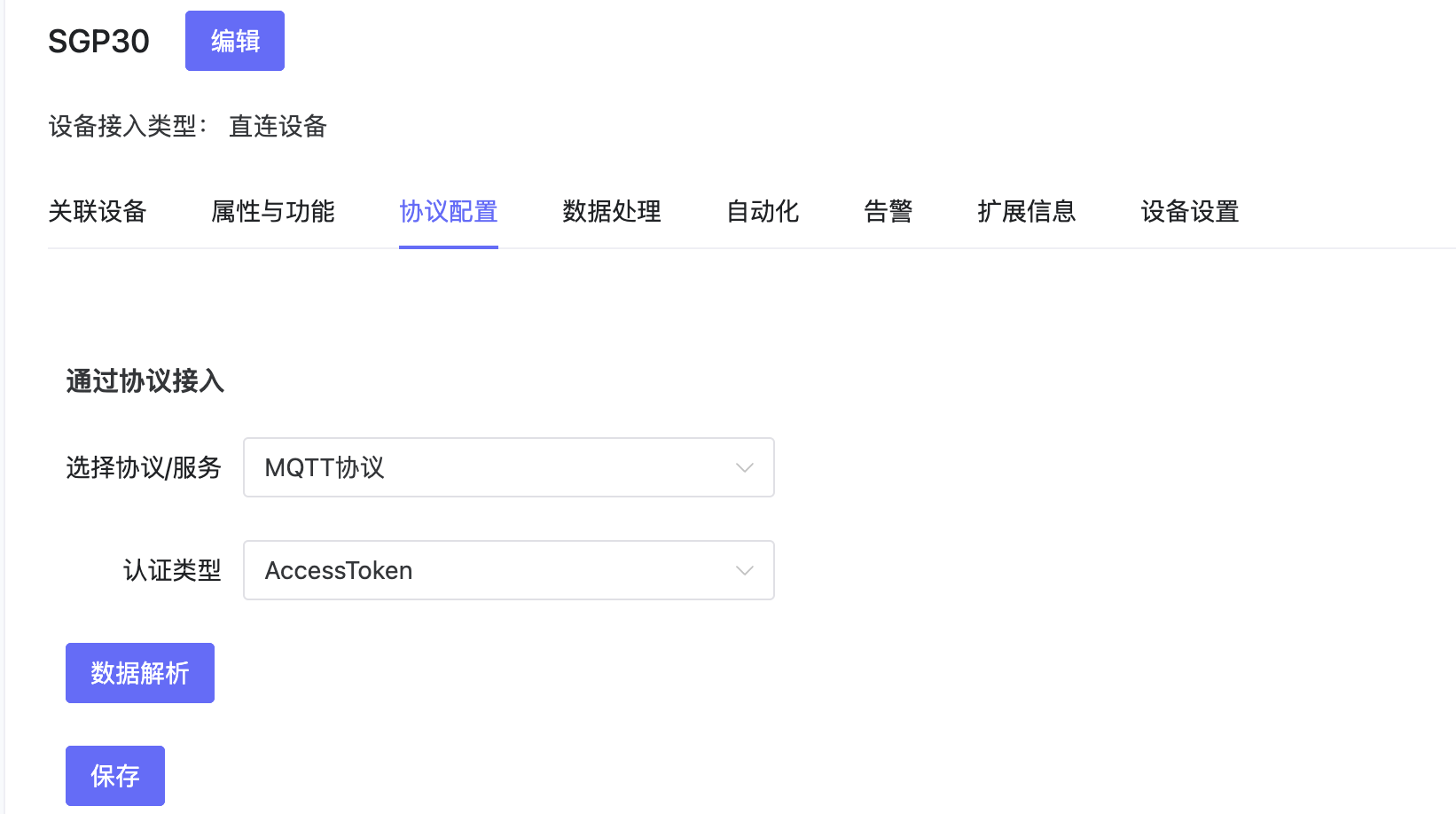
2.5 Protocol Configuration

  • Configure the protocol called by this device template.

Protocol Config

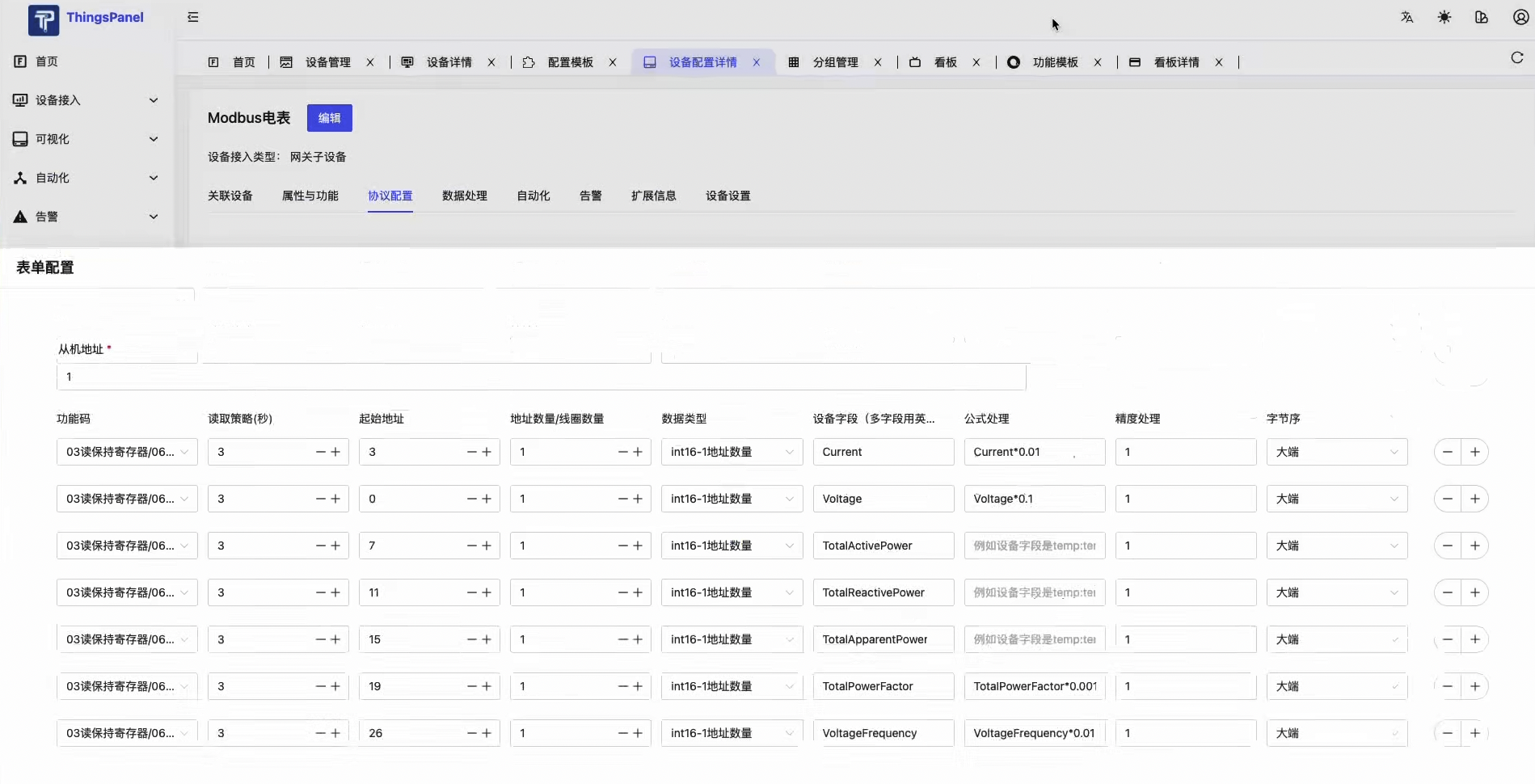
  • If Modbus Meter is configured:

Modbus

2.6 Data Processing

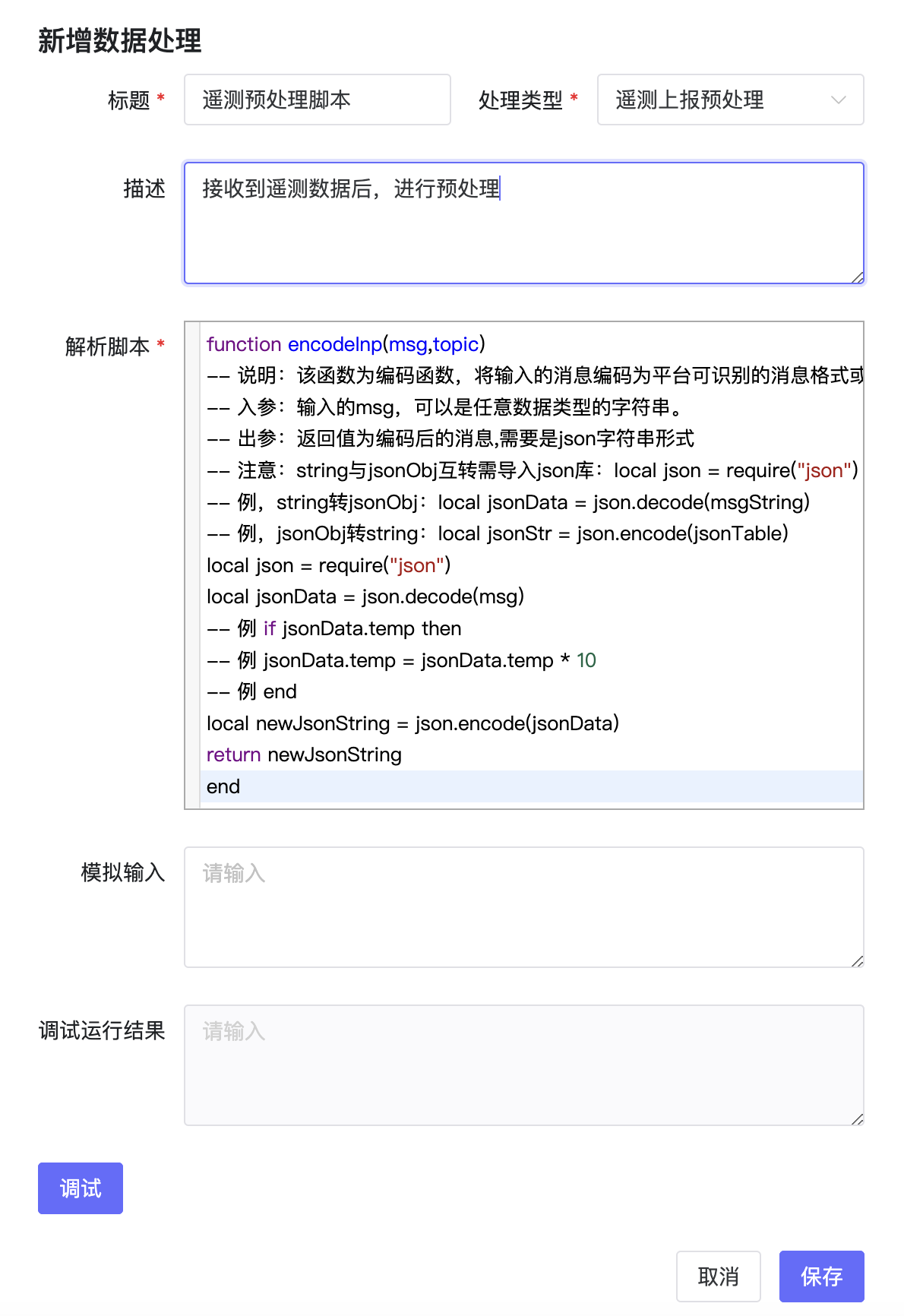
  • Configure pre-processing for data received by the device. Use custom parsing scripts to convert non-standard JSON formats into platform-understandable JSON formats, and debug on the page.
  • User reported data passes through the script before being stored in the database.
  • Example: If reported data is binary, it can be converted to JSON via script and then stored.
  • This script runs after MQTT broker and before database storage for real-time data processing.
Data Processing

2.7 Automation

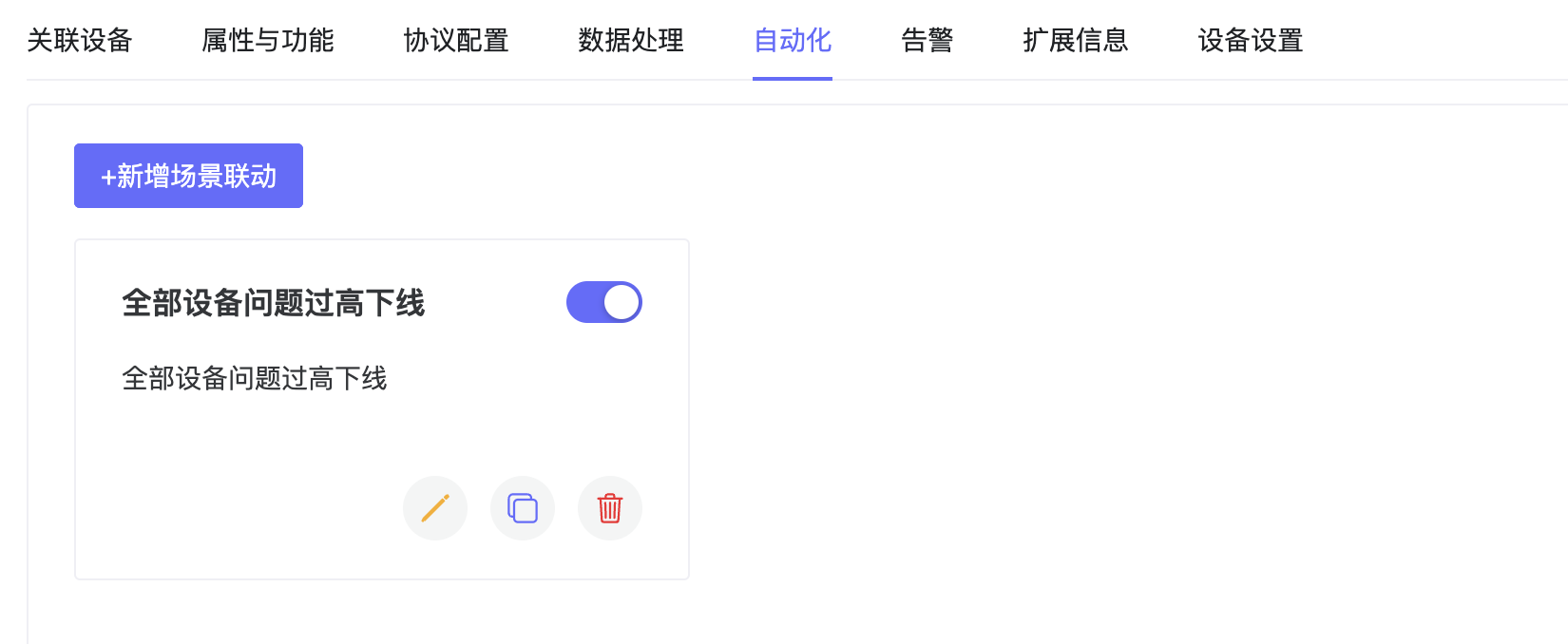
  • Automation calls the [Scene Linkage] form to create automation rules, using the global unified edit form.

Automation

2.8 Alarm

  • Alarm calls the [Scene Linkage] form to create alarm rules, using the global unified edit form.

Alarm

2.9 Extended Information

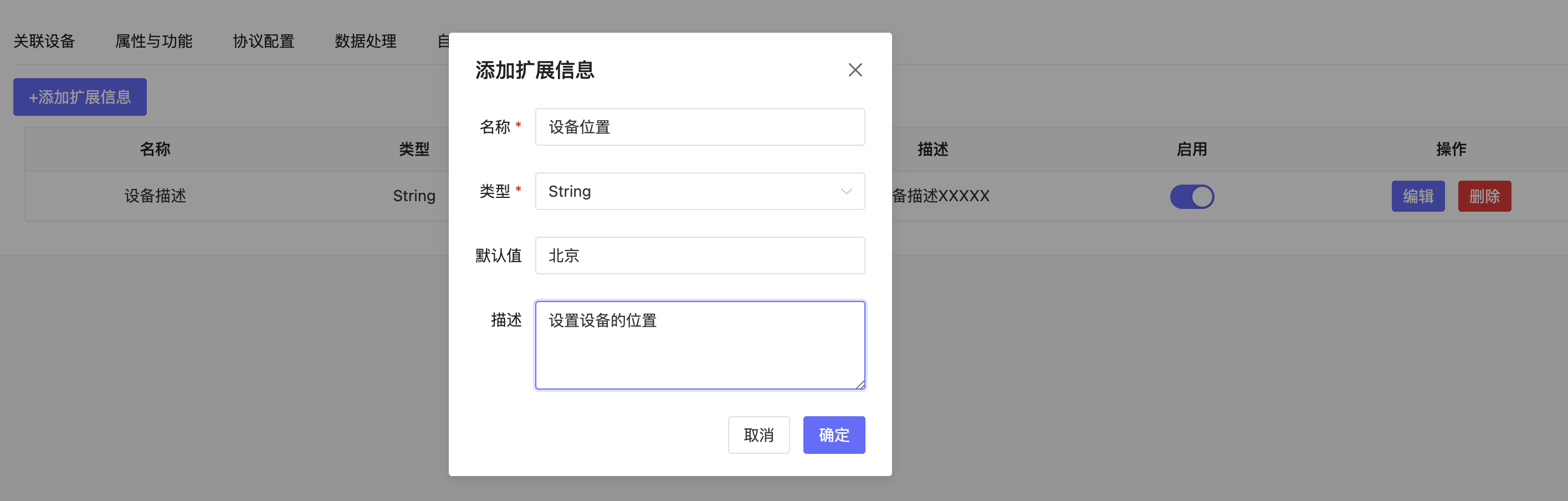
  • Extra fields for the device, such as device location, maintenance manual, etc.

Extended Info

2.10 Device Settings

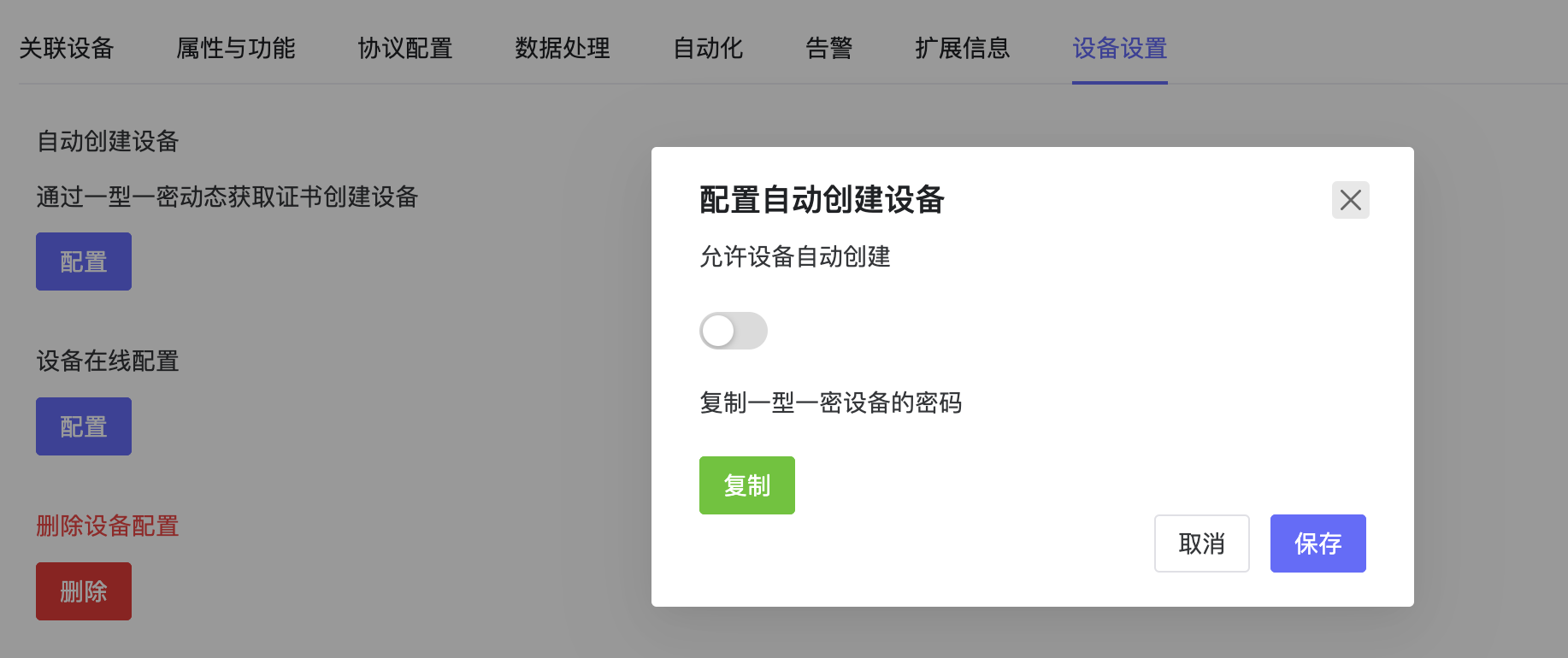
  • Configure auto-activation, online settings, delete device template.

Device Settings