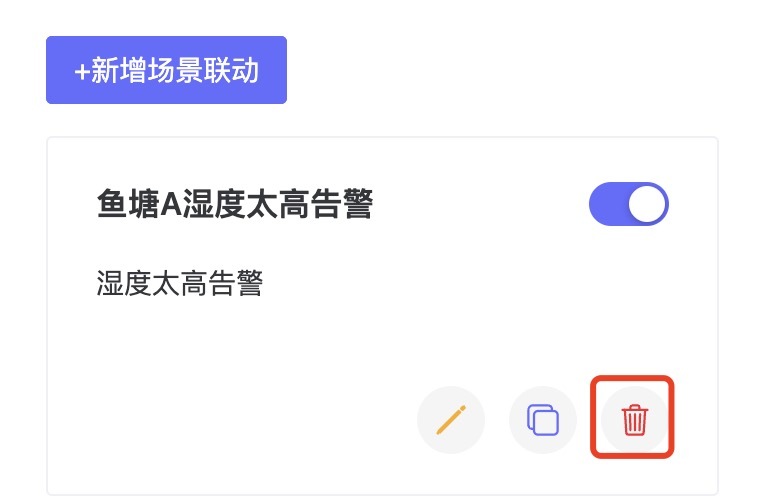
Scene Linkage
1. Description
- Similar to the automation configuration in devices and device templates, you can add various scene linkage configurations or alarms.
- Configurations added in device and device template automation will also appear here.
2. Operation Steps
Prerequisites: Devices are connected and plugins are bound.
2.1 New Scene Linkage
- Click "New Scene Linkage" to create a new one.
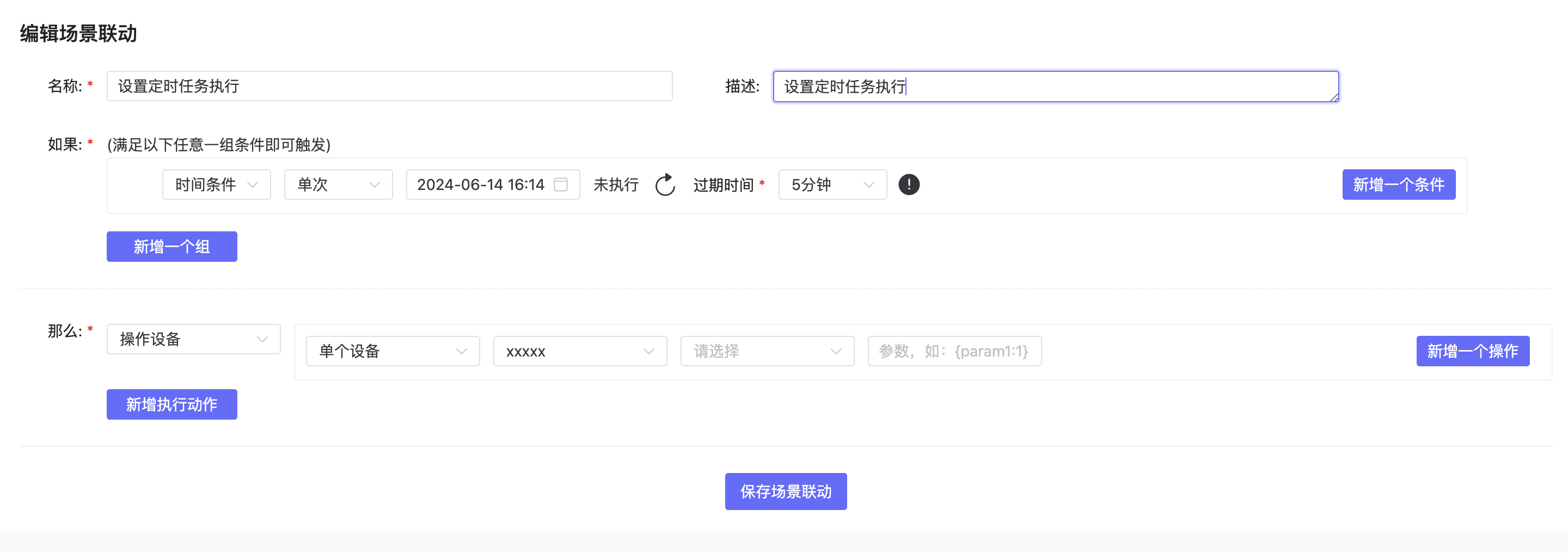
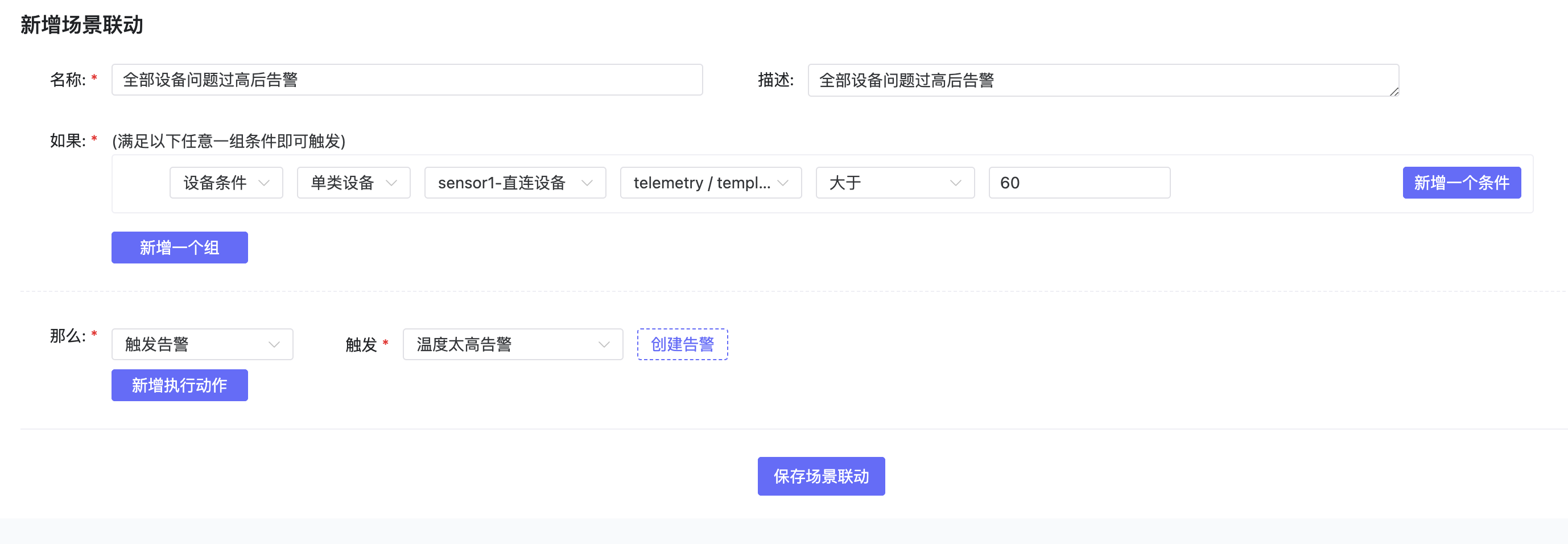
- Currently supports Time Conditions and Device Conditions.
-
Time Conditions:
- Repeat types:
- Every hour at X minute;
- Every day at HH:mm;
- Every week on [Days] at HH:mm;
- Every month on [Dates] at HH:mm;
- Custom Cron.
- One-time (Deleted after execution), format: yyyy-MM-dd HH:mm:ss.
- Time Range: Must be used with Device Conditions (AND relationship).
Cron Description 0/2 * * * * Every 2 minutes 0 0/2 * * * Every 2 hours 15 10 * * * Every day at 10:15 AM 0/5 14 * * * Every 5 minutes starting at 2:00 PM and ending at 2:55 PM, every day 0/5 14,18 * * * Every 5 minutes starting at 2:00 PM and ending at 2:55 PM, AND starting at 6:00 PM and ending at 6:55 PM, every day 15 10 ? * MON-FRI At 10:15 AM, Monday through Friday 15 10 15 * * At 10:15 AM on the 15th day of every month
- Repeat types:
-
Device Conditions:
- Device attributes, events, online/offline status.
- Single Device: Executed only when this specific device triggers the condition.
- Device Type: Executed when any device using the specified template triggers the condition.
-
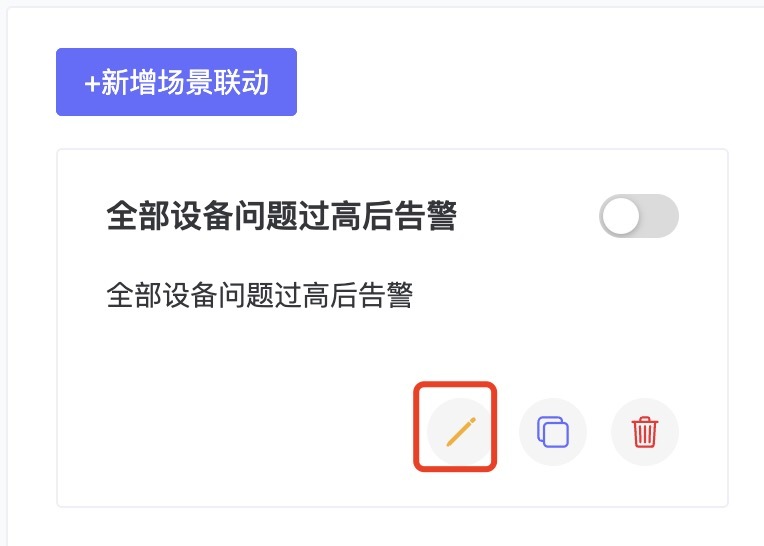
2.2 Edit Scene Linkage
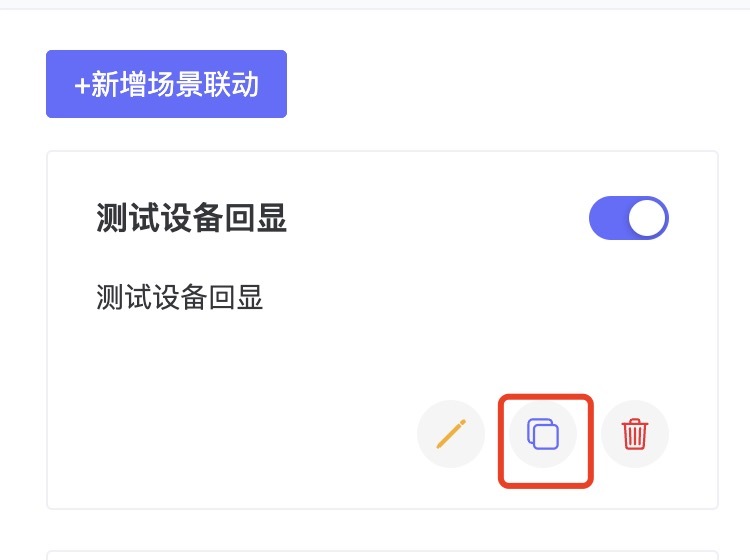
- Find the scene linkage to edit, click Edit to modify its content.
2.3 View Logs
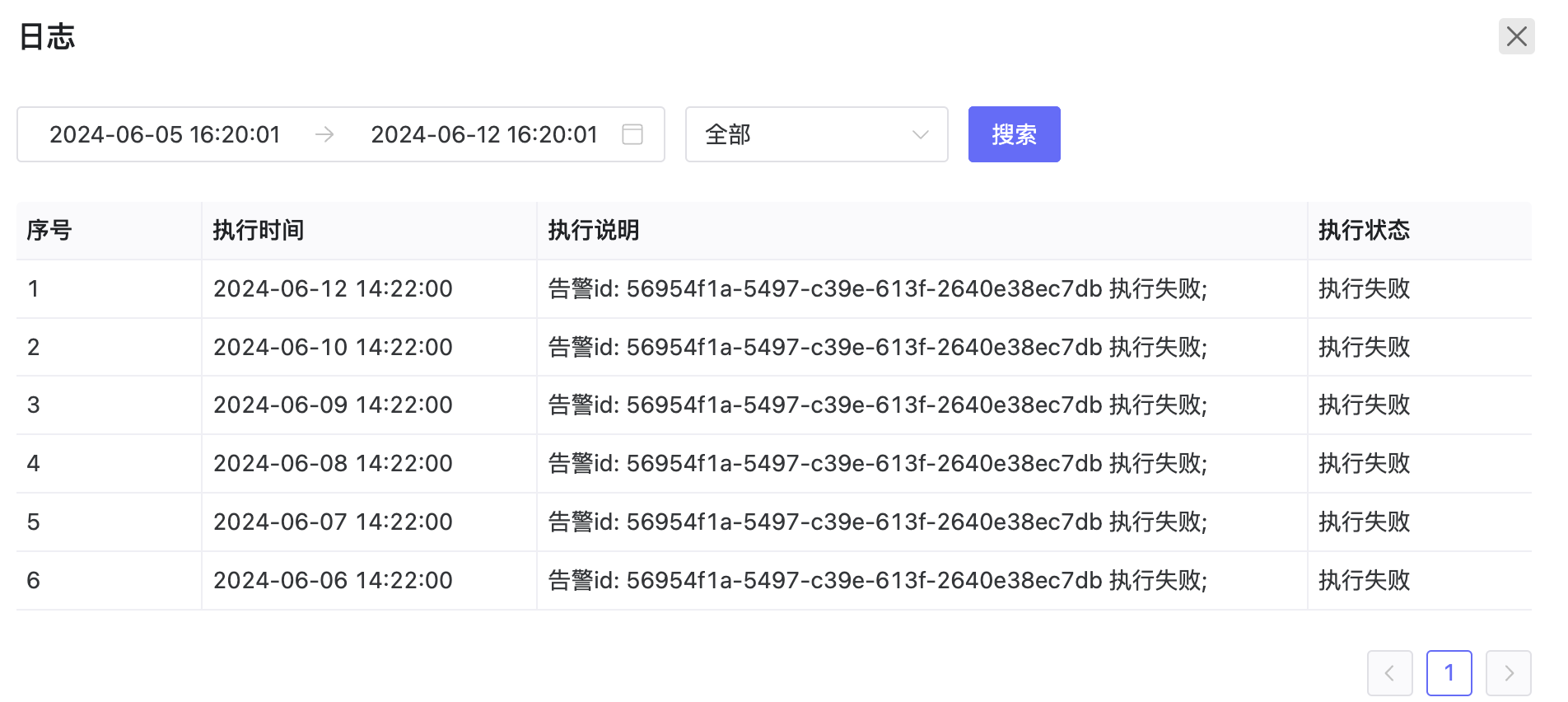
- Click the Log button to view trigger logs for the scene linkage.
2.4 Delete Scene Linkage
- Click Delete to remove the configuration.