3D Visual Plugin Development
Next, we will develop a 3D scene component for the official plugin that can be dragged onto the canvas.
- Adjust the font size, color, and background color of device tags in the 3D scene through the right property panel.
- Set the display text in device tags through the data panel.
- Show interface data on device tags by binding devices.
The final effect is as follows:
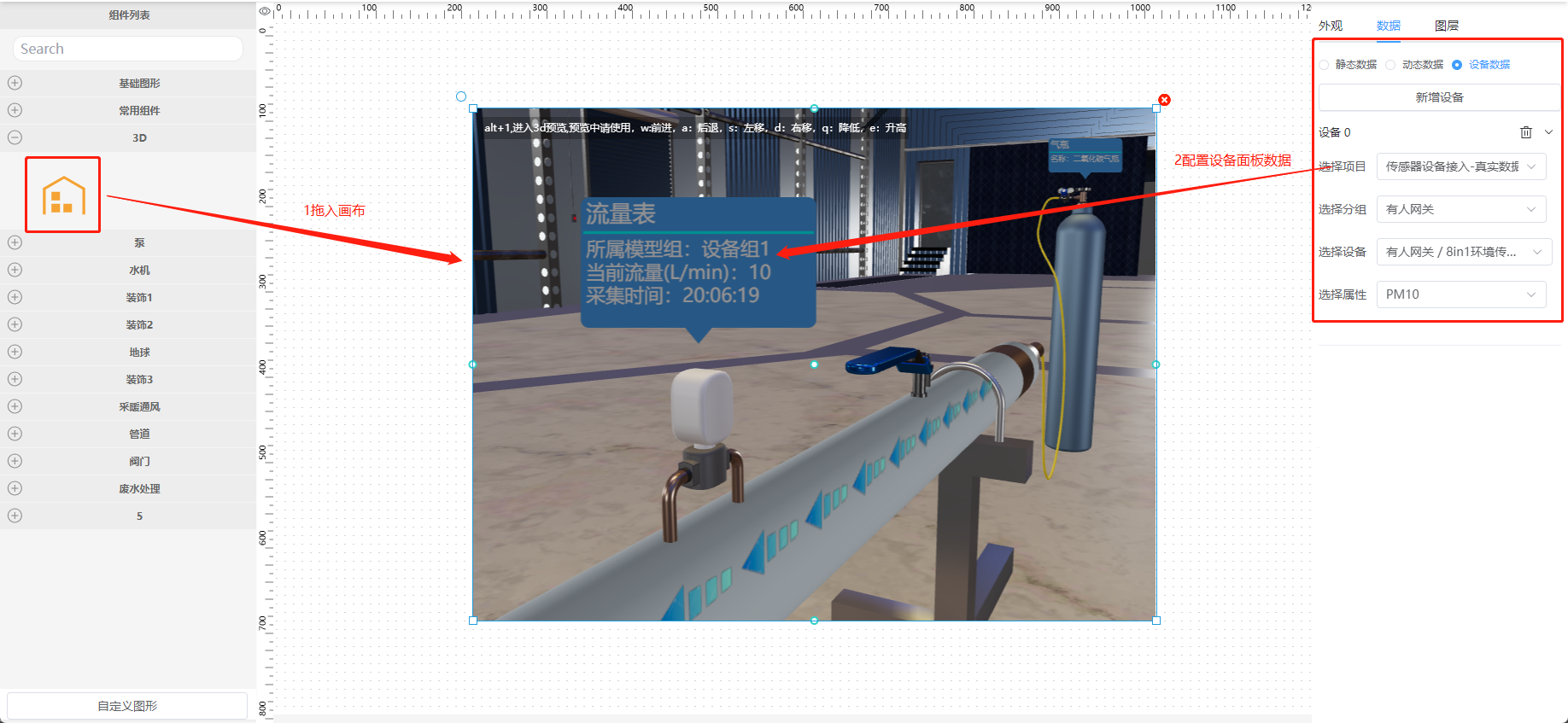 As shown above, after plugin development is complete, we can complete the 3D scene construction and data access in just two steps. Is it very convenient? Next, let's enter the development process.
Development Documentation
Step 1: Create Component Files
The official plugins directory is src/plugins/tp-plugins. Create a threejs-demo directory in this folder, and create the following 4 files in it:
index.ts, Main.vue, Data.vue, Attribute.vue. Also add an icon.svg for the left list icon.
index.ts: Export file.Main.vue: Main plugin component.Data.vue: Data binding panel component.Attribute.vue: Attribute adjustment panel component.icon.svg: Left list icon.
Step 2: Prepare 3D Engine File engine.js
Prepare your developed 3D scene file engine.js. Besides your 3D logic, ensure the following:
Place it in ./threejs-demo/scene/lib.
- 3D function customization.
- Interface encapsulation, e.g.,
freshAttributesinterface. - Register scene loaded callback:
addEventListener('sceneLoaded', ({ flag }) => {}). - Keyboard operation mode (no cursor mode), shortcut is
alt+1. Other keys can be customized, but you need to prompt the user. Note that since our editor occupies many mouse events, mouse-based movement in edit mode is not recommended.
Step 3: Prepare Data Store (Pinia)
We use Pinia for data storage. Name the file sceneRenderBackstage.js and place it in ./threejs-demo/store/.
// pinia
import {defineStore} from 'pinia';

import {shallowRef} from 'vue'
//import { SceneBackstage } from '@/engines/lib/main'
import {SceneBackstage} from '../scene/lib/engine.js';

export const useSceneDemo = defineStore('sceneDemo', {

    state: () => {
        return {
            scene: shallowRef(null),	// Return scene object
        };
    },
    actions: {
        // Function: Create SceneRender and return scene object
        createSceneRender(containerDiv) {
            this.scene = new SceneBackstage(containerDiv);	// Create scene and return object
        },

        // Function: Register scene loaded callback, usually for setting historical or default data
        initData(fn) {
            this.scene.addEventListener('sceneLoaded', fn)
        },
        // Function: Set style method for data panel
        setColor(textColor, bgColor, fontSize) {
            if (this?.scene?.hotspotMgr) {
                this.scene.hotspotMgr.models.forEach((key, wal) => {
                    key.textColor = textColor
                    key.bgColor = bgColor
                    key.fontSize = fontSize
                    key.update()
                })
            }
        },
        // Function: Get style method for data panel
        getColor() {
            let obj = {
                fontSize: 30,
                textColor: 'fff',
                bgColor: '#00AEFF',
            }
            console.log(this.scene.hotspotMgr.models, "DEBUG_LOG")

            this.scene.hotspotMgr.models.forEach((key, wal) => {
                obj.textColor = key.textColor
                obj.bgColor = key.bgColor
                obj.fontSize = key.fontSize
            })
            return obj

        },
        // Function: Modify bound data, Call Case 2
        freshSensors(sensorValue) {
            // Can update single or multiple device data
            // Device ID matching from left to right in 3D
            if (!sensorValue) {
                let sensorValue = [
                    {sensorId: 1, gatherTime: '2023-06-01 15:48:08', gatherValue: 98.71},
                    {sensorId: 2, gatherTime: '2023-06-01 15:48:08', gatherValue: 1.83},
                    {sensorId: 5, gatherTime: '2023-06-01 15:48:08', gatherValue: 84.96},
                    {sensorId: 6, gatherTime: '2023-06-01 15:48:08', gatherValue: 176.41},
                    {sensorId: 7, gatherTime: '2023-06-01 15:48:08', gatherValue: 16.4}
                ];
            }

            this.scene.freshSensors(sensorValue);
            return sensorValue
        },
        // Function: Dynamic data update, Call Case 1
        freshAttributes(AttributesObj) {
            // Single
            let AttributesObj1 = {cylinderName: "CO2 Cylinder"};
            //this.scene.freshAttributes(AttributesObj1);
            // Multiple
            if (!AttributesObj) {
                let AttributesObj = {
                    cylinderName: "CO2 Cylinder",
                    pumpPower: 'Variable Negative Pressure Pump'
                }
            }
            this.scene.freshAttributes(AttributesObj);
            return AttributesObj
        },
    },
});
Step 4: Write Attribute Panel Attribute.vue
This file is a template. Modify your attribute form as needed. We will pass this form via style prop to Main.vue. You will see how to use them in Step 6.
Pay attention to /*** comments in the code.
<template>
  <el-collapse v-model="activeNames">
    <el-collapse-item title="Style" name="style">
      <!-- Design form based on your style editing capabilities and interfaces -->
      <el-form v-model="formData">
        <el-form-item label="Font Size">
          <el-input v-model="formData.fontSize"></el-input>
        </el-form-item>
        <el-form-item label="Color">
          <tp-color-picker v-model="formData.color"/>
        </el-form-item>

        <el-form-item label="Background">
          <tp-color-picker v-model="formData.bgColor"/>
        </el-form-item>
      </el-form>
    </el-collapse-item>
  </el-collapse>
</template>

<script lang="ts">
import {defineComponent} from "vue";
import {useSceneDemo} from "@/plugins/tp-plugin/threejs-demo2/store/sceneRenderBackstage";

const sceneStore = useSceneDemo()
export default defineComponent({
  data() {
    return {
      activeNames: 'style',
      formData: {
        fontSize: 30,
        color: '',
        bgColor: '',
      }
    }
  },
  watch: {
    formData: {
      handler(val) {
        this.$emit("onChange", {
          style: val
        });
      },
      deep: true
    }
  }
  ,
  mounted() {
    if (this.formData.color === '') {
      //*** Method to get default values. If none, simplify hardcode in data above ****
      let obj = sceneStore.getColor()
      this.formData.fontSize = obj.fontSize
      this.formData.color = obj.textColor
      this.formData.bgColor = obj.bgColor
    }

  }
})
</script>
<style lang="scss" scoped>
</style>
Step 5: Write Data Panel Data.vue
This file is also a template. If familiar with Vue, adjust structure/style. Otherwise, avoid modifying code logic. We pass static data, device binding data via value, data props to Main.vue.
<template>
  <div style="height:100%">
    <el-row style="margin-bottom: 10px">
      <el-radio-group v-model="formData.bindType">
        <el-radio v-for="item in bindOptions" :label="item.value" size="small">{{ item.label }}</el-radio>
      </el-radio-group>
    </el-row>
    <el-row style="height:100%">
      <!-- Static Data -->
      <el-input v-if="formData.bindType==='static'" :rows="20" type="textarea" v-model="formData.static"></el-input>
      <!-- Dynamic Data -->
      <el-form-item v-else-if="formData.bindType==='dynamic'" style="width:100%">
        <el-input :rows="2" type="textarea" v-model="formData.dynamic"></el-input>
      </el-form-item>
      <!-- Device Data -->
      <div class="w-full" v-else-if="formData.bindType==='device'">
        <slot></slot>
      </div>

    </el-row>
  </div>
</template>

<script setup>
import {onMounted, onUnmounted, reactive, ref, watch} from "vue";

//*** Example preparation for static data. Modify to your own structure. Empty object if none. ***
const staticData = {
  Attributes: {
    cylinderName: "CO2 Cylinder",
    pumpPower: 'Variable Negative Pressure Pump'
  },
  Sensors: [
    {sensorId: 1, gatherTime: '2023-06-01 15:48:08', gatherValue: 98.71},
    // ...
  ]
}
// Fixed logic below
const emit = defineEmits(['onChange'])
const props = defineProps({
  data: {
    type: [String, Object],
    default: () => ({})
  }
});
const timers = ref([])
const formData = reactive({
  bindType: 'static',
  static: JSON.stringify(staticData)
})
const formData2 = reactive({
  bindType: 'device',
  device: null
})

const bindOptions = ref([
  {value: 'static', label: 'Static Data'},
  {value: 'dynamic', label: 'Dynamic Data'},
  {value: 'device', label: 'Device Data'}
])
watch(formData, (newValues, oldValues) => {
  console.log(newValues, "4324324")
  emit("onChange", {
    data: {bindType: formData.bindType, ...newValues}
  });
})
onMounted(() => {
  if (JSON.stringify(props.data) !== "{}" && JSON.stringify(props.data) !== "[]") {
    formData.device = JSON.parse(JSON.stringify(props.data));
  }
})
onUnmounted(() => {
  if (timers.value.length > 0) {
    timers.value.map((i) => {
      clearInterval(i)
    })
  }
})
</script>
<style lang="scss" scoped>
.el-radio.el-radio--small {
  margin-right: 10px
}
</style>
Step 6: Write Main.vue
<!--
 * @Author: wbh
 * @Date: 2022-12-29 21:54:11
 * @LastEditors: wbh
-->
<template>
  <!-- Prepare mask and prompt. Since dragging conflicts, mask is needed initially. Shortcut to enter no-mouse mode set to alt+1 in engine.js -->
  <div
      :style="{padding:'10px',color:'#fff',position: 'absolute',width: '100%',height: props.isDisplay?'0px':isEnter,backgroundColor:' #00000000',display: 'flex',justifyContent: 'start',alignItems: 'start'}">
    <div style='color: #fff;background-color: #00000044;padding: 4px;font-size: 12px'>
      alt+1 to enter 3D preview. Controls: w:forward, a:back, s:left, d:right, q:down, e:up
    </div>
  </div>
  <!-- Prepare div for rendering, ref is key -->
  <div class="content" ref="threeBox"></div>
</template>

<script lang="ts" setup>
import {useSceneDemo} from './store/sceneRenderBackstage';
import {useIs3DMode} from '@/store/modules/is3DStroe';
// Device data interface provided by ThingsPanel
import DataAPI from "@/api/data";
import {
  ref,
  watch,
  onMounted,
  onBeforeUnmount,
} from 'vue';
import {isEqual, uniqWith} from "lodash";

const props = defineProps({
  isDisplay: {
    type: Boolean,
    default: false,
  },
  isContentReady: {
    type: Boolean,
    default: true,
  },
  style: {
    type: Object,
    default: () => {
      return {};
    }
  },
  value: {
    type: String,
    default: () => {
      return '';
    },
  },
  data: {
    type: Object || undefined,
    default: () => {
      return undefined;
    },
  },
  id: {
    type: String,
    default: () => {
      return '';
    },
  },
});

// Initial mask height 100% to prevent camera rotation when dragging
const isEnter = ref('100%')
// Rendering container ref
const threeBox = ref();
// Data prep
const is3DMode = useIs3DMode() // 3D preview mode store
const sceneStore = useSceneDemo() // 3D data store
let deviceDataRequestTimer: any = null
let DataDelayTimer1: any = null
let DataDelayTimer2: any = null

// Watch 3D mode entry
watch(() => is3DMode.is3DMode, (newValue, oldValue) => {
  if (newValue) {
    isEnter.value = '0px'
  } else {
    isEnter.value = '0px'
  }
})

function setDeviceData(value: any) {
  if (deviceDataRequestTimer) {
    clearInterval(deviceDataRequestTimer)
    clearTimeout(DataDelayTimer1)
    clearTimeout(DataDelayTimer2)
  }

  if (value?.deviceData?.length > 0) {
    const getDeviceData = () => {
      value?.deviceData.forEach(async (i: any, index: number) => {
        let propertyArr = []
        i.property
        const res = await DataAPI.getCurrentValue({entity_id: i.deviceId})
        if (res?.data?.code === 200 && res?.data?.data?.length > 0) {
          if (index === 0) {
              // ... Data update logic
          }
          if (index === 1) {
            sceneStore.freshAttributes({
              cylinderName: " ",
              pumpPower: 'Variable Negative Pressure Pump'
            })
            // ...
          }
        }
      })
      return getDeviceData
    }
    deviceDataRequestTimer = setInterval(getDeviceData(), 5000)
  }
}

function setStaticData(value: string) {
    // ... logic for static data
}

// Render 3D scene and flush default/historical data
onMounted(() => {
  if (deviceDataRequestTimer) {
    clearInterval(deviceDataRequestTimer)
    clearTimeout(DataDelayTimer1)
    clearTimeout(DataDelayTimer2)
  }
  sceneStore.createSceneRender(threeBox.value)
  sceneStore.initData(() => {
    console.log(props.style, "DEBUG_LOG")
    if (JSON.stringify(props.style) !== '{}') {

      sceneStore.setColor(props.style.color
          , props.style.bgColor, props.style.fontSize)
    }
    if (props.value) {
      console.log(props.value, "3dProps")
      setStaticData(props.value)
    } else {
      if (props.data && JSON.stringify(props.data) !== '{}') {
        if (props.data.deviceData.length > 0) {
          setDeviceData(props.data);
        }
      }
    }

  })
})

watch(() => props.style, (newValue, oldValue) => {
  sceneStore.setColor(props.style.color
      , props.style.bgColor, props.style.fontSize)
})

watch(() => props.data, (newValue, oldValue) => {
  setDeviceData(newValue);
})

watch(() => props.value, (newValue, oldValue) => {
  setStaticData(newValue);
})

onBeforeUnmount(() => {
  if (deviceDataRequestTimer) {
    clearInterval(deviceDataRequestTimer)
    clearTimeout(DataDelayTimer1)
    clearTimeout(DataDelayTimer2)
  }
})
</script>
<style scoped lang="scss">
.content {
  width: 100%;
  height: 100%;
}
</style>
Step 7: Export Component
Export in threejs-demo/index.ts.
import Three2_Attribute from "./Attribute.vue";
import Three2_Data from "./Data.vue";
import Three2_Main from "./Main.vue";
import Three2_Icon from "./icon.svg";

export {Three2_Attribute, Three2_Data, Three2_Main, Three2_Icon};
Step 8: Configure 3D Component
In src/plugins/tp-plugins/index.ts:
// ... other official imports

// Import your plugin config
import {
    Three2_Attribute,
    Three2_Data,
    Three2_Icon,
    Three2_Main,
} from "./threejs-demo2";

// ... defaultViews

const Three2Obj = {
    name: "ThreeJsDemo", // Node name, x6 shape property, must start with ThreeJs to distinguish
    description: "",
    type: "3d", // Fixed
    group: "3D", // Fixed
    icon: Three2_Icon,
    size: {width: 800, height: 600},
    Main: Three2_Main,
    Attribute: Three2_Attribute,
    Data: Three2_Data,
};

export default {
    views: [
        ...defaultViews, // Do not modify
        Three2Obj, // Add your config
    ],
};
Development Video
Coming soon.
Demo Video
Coming soon.