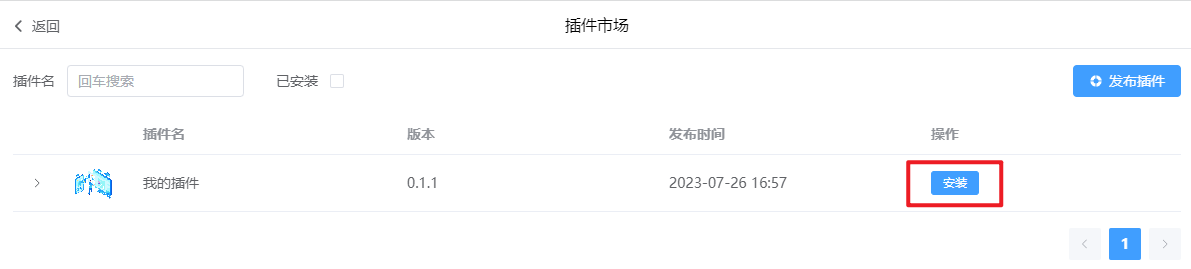
Visual Plugin Publishing
[Deprecated, Incompatible with New Version]
ThingsPanel visual editor supports user-defined plugins. After developing a plugin locally, users can publish it to the official plugin market for everyone to use. This article introduces how to publish custom plugins to the plugin market.
What is a Visual Plugin
A visual plugin consists of multiple Vue components. When published, it is automatically packaged into a JS file and stored in the ThingsPanel plugin market. All logged-in users of the visual editor can install your published plugin to their local server with one click.
I. Plugin Development
Download visual-editor project: https://github.com/ThingsPanel/visual-editor [Deprecated, Incompatible with New Version]
Click here to Develop Your First Plugin
II. Plugin Publishing
After development, you can publish.
1. Global Install CLI
Open cmd, run:
npm install @thingspanel/cli -g
2. Start Visual-Editor Locally
pnpm run dev
3. Login to Plugin Market
Click "Plugin Market" in the top right corner of the visual editor. Enter your account and password.

If no account, Register Here
4. Create Plugin
-
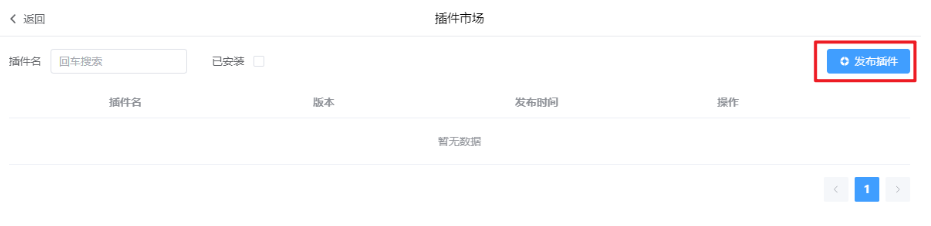
After login, click Publish Plugin -> Create Plugin, fill in info, get Secret.
-
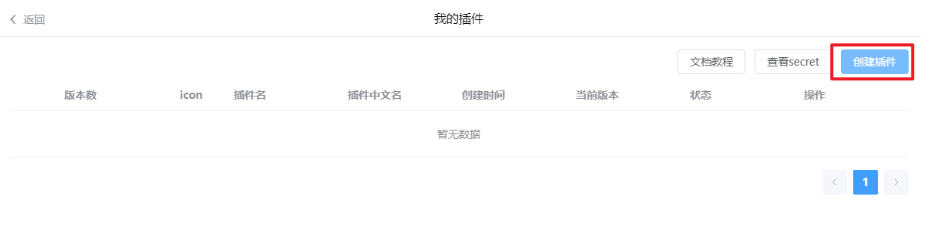
Click Create.
-
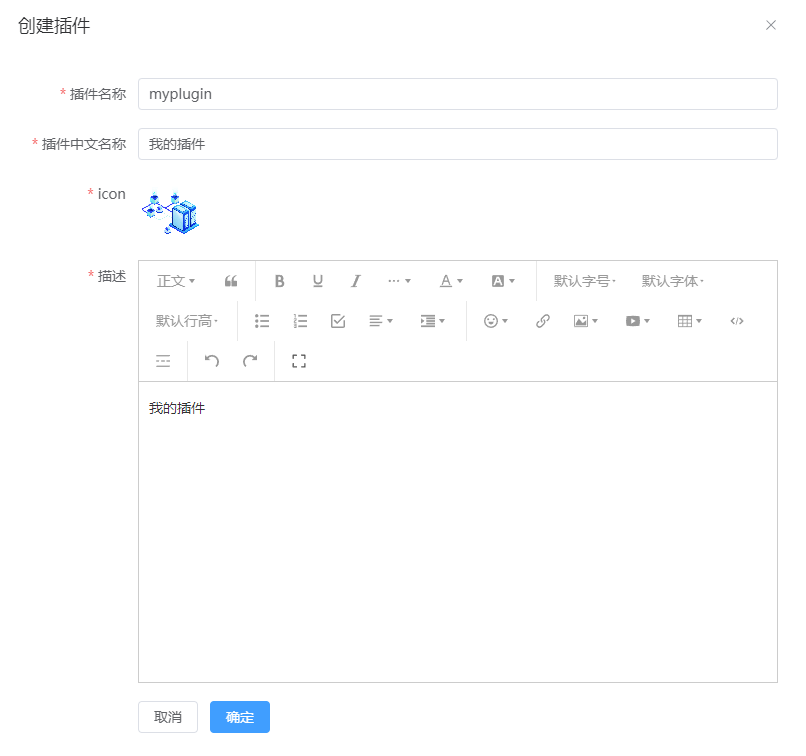
Fill in plugin details.
-
After confirmation, the plugin will appear in the list.
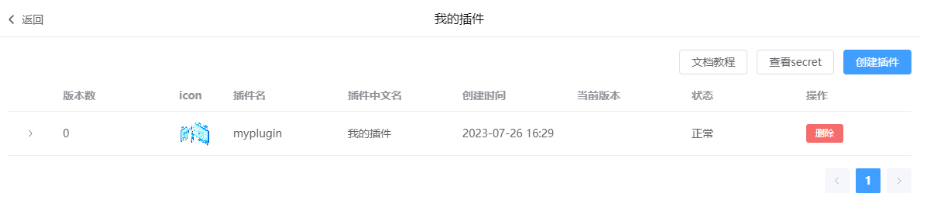
5. Configure config.json
Click View Secret, copy it.
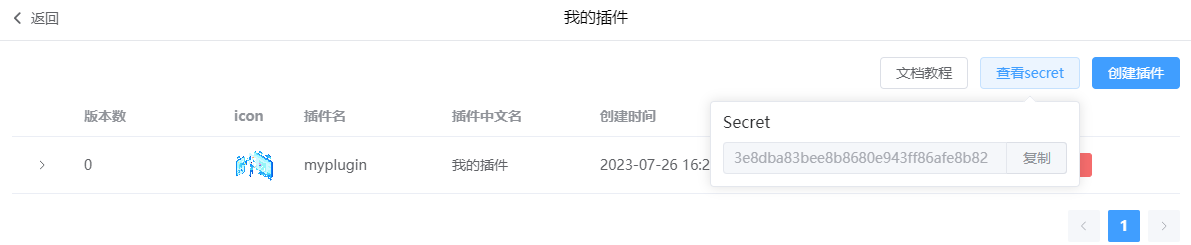
Back in code editor, create config.json in your custom plugin directory test-plugin. Configure name, version, secret.
{
    "name": "myplugin",
    "version": "0.1.1",
    "secret": "3e8dba83bee8b8680e943ff86afe8b82"
}
namematches the name filled in Step 4.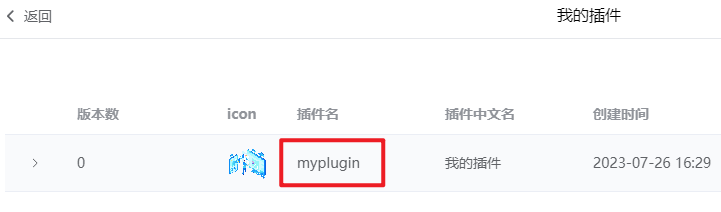
versiondefined by developer.secretis the one you copied.
6. Build and Upload Plugin
In the command line, go to the visual project root directory, run:
tp-pack -r ./ -i ./src/plugins/test-plugin

If success message appears, upload is successful.

7. Submit for Review
Start visual editor locally pnpm run dev.
Open Plugin Market, click Publish Plugin, expand plugin list, see your uploaded plugin.
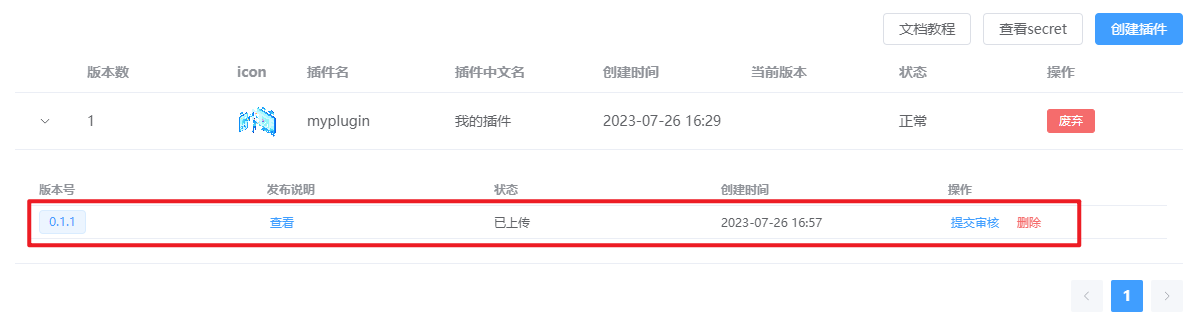
Click Submit for Review. Wait for admin approval. After approval, your plugin is available for download.