MQTT Direct Onboarding
Onboarding Steps
- Create Device
- Select Device Template (Optional)
- Get Device Configuration Parameters
- Configure Device
- Complete Onboarding
Quick Onboarding Video
Detailed Process
Create Device
In the Device Connectivity menu, click Add Device. You can manually add a device.
- No Device Template: Defaults to MQTT protocol, using MQTT Basic authentication.
- Select Device Template: Use the protocol bound in the device template.
Configure Device
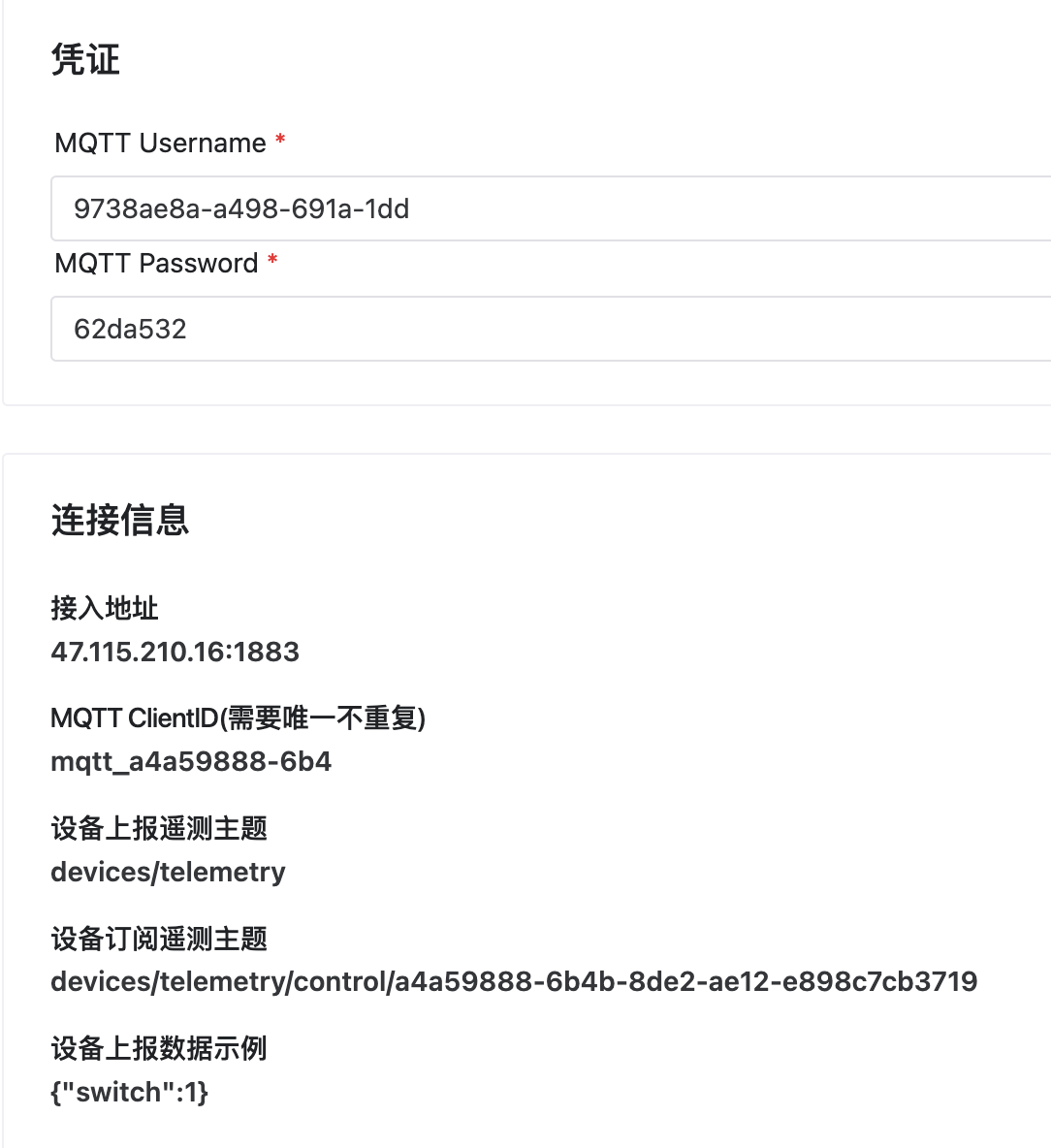
Simulation via Command Line
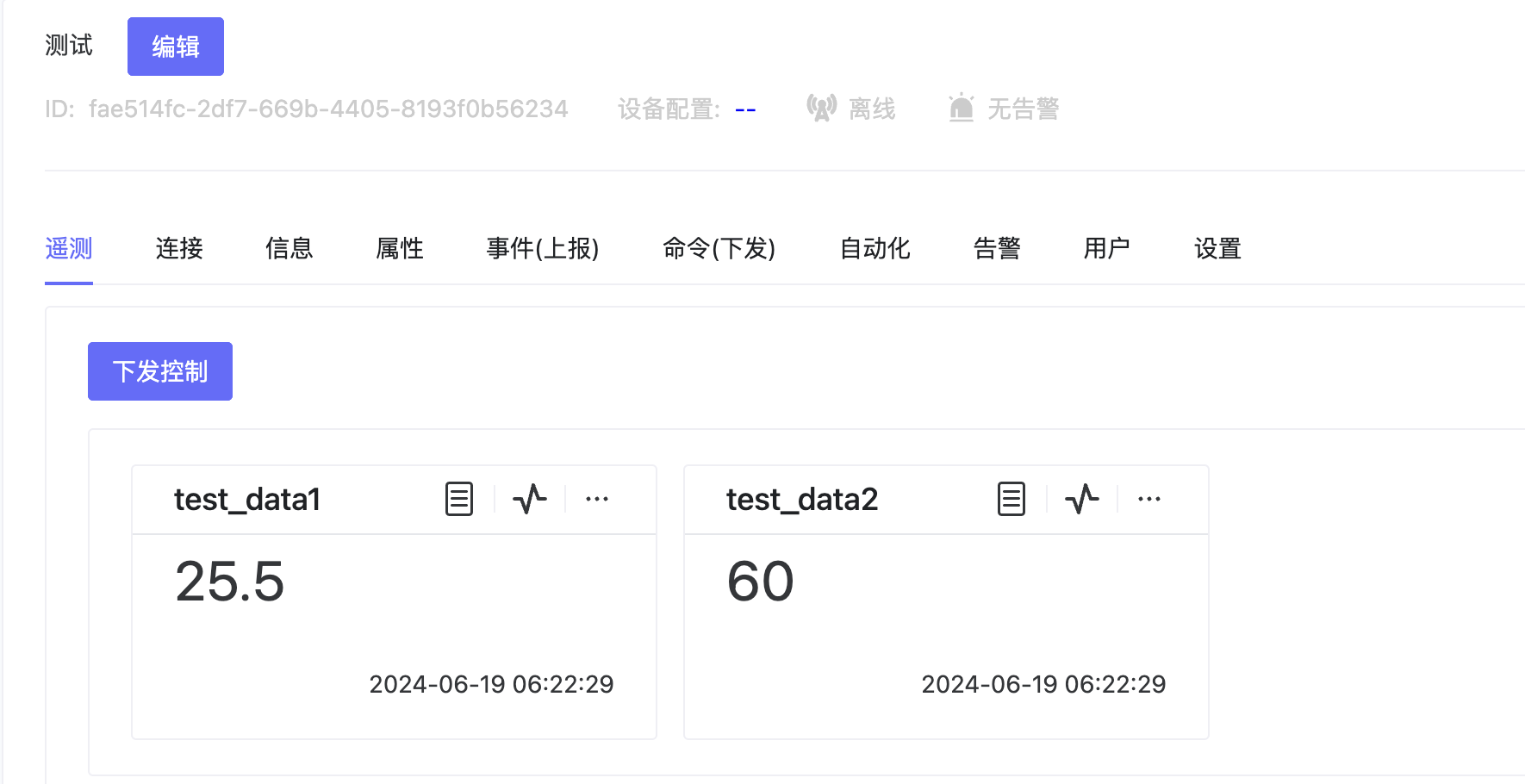
mosquitto_pub -h 47.115.210.16 -p 1883 -t "devices/telemetry" -m "{\"test_data1\":25.5,\"test_data2\":60}" -u "5547c615-593e-6fb1-41f" -P "ced8bfd" -i "mqtt_28e7fdfd-514"
Explanation of the mosquitto_pub command:
mosquitto_pub: Command line tool to publish messages.-h: Server host IP.-p: Server port (default 1883).-t: Topic (devices/telemetry).-m: Message payload (JSON string).-u: Username.-P: Password.-i: Client ID.
Use Mosquitto MQTT Client
Install Mosquitto MQTT client locally. The command is the same as the simulation command.
Result
MQTT Onboarding Specification
Direct Device MQTT Interaction Spec
Common Issues
- Note that MQTT Broker address might differ from the platform address.
- MQTT ClientID must be unique.
- If device is online but no messages, check the Topic.
- If simulation works, platform is fine; check device side issues.